AJA systems: Difference between revisions
No edit summary |
|||
| (50 intermediate revisions by the same user not shown) | |||
| Line 9: | Line 9: | ||
|secondary = Martin | |secondary = Martin | ||
}} | }} | ||
''Page last updated: | ''Page last updated: 22 Jun 2026'' | ||
There are two AJA Orion physical vapor deposition (PVD) systems at the [[Main Page|NBI cleanroom]]. | There are two AJA Orion physical vapor deposition (PVD) systems at the [[Main Page|NBI cleanroom]]. | ||
| Line 15: | Line 15: | ||
Most users utilize the tools for thin film metal deposition and substrate surface cleaning. | Most users utilize the tools for thin film metal deposition and substrate surface cleaning. | ||
<div style="background-color: #17a2b8; border: 1px solid #1491A5; padding: 10px; border-radius: 5px;"> | |||
* | * Service notes and troubleshooting issues are all gathered in the dedicated [[AJA service]] page. | ||
** [[ | |||
* | * Maintenance logs are collected in the Excel czar log page. | ||
* Information on [[How to evaporate metals in AJA |how to evaporate metals in AJA]] based on their physical properties. | |||
* An [[AJA gallery]] page shows all the components inside the tool for a deeper understanding | |||
</div> | |||
== Overview == | == Overview == | ||
| Line 30: | Line 33: | ||
They differ slightly in their outfitting: | They differ slightly in their outfitting: | ||
* System 1: Two 2" DC sputtering targets, Kaufman ion source for cleaning. Mechanically clamped to the loading arm and magnetically clamped to the rotating stage inside. | * System 1: Two 2" DC sputtering targets, Kaufman ion source for cleaning. Mechanically clamped to the loading arm and magnetically clamped to the rotating stage inside. Oxidation chamber on the loadlock. | ||
* System 2: One regular 2" DC sputtering target, one | * System 2: One regular 2" DC sputtering target, one 3" DC sputtering target with adjustable working distance, one 2" RF sputtering target, and an RF supply to the stage for substrate sputtering (ion milling). Mechanically clamped to the loading arm as well as the stage inside the chamber. Stage water cooling (same 19°C chiller circuit as for magnetrons and e-beam crucibles). Stray electrons on the near side are stopped by an extra static shutter, magnetically steered away on the far side. | ||
Systems 1 and 2 are expected to at least reach a vacuum of about 2x10<sup>-8</sup> Torr and 6x10<sup>-8</sup> Torr (respectively) after pumping for 24 hours on the main chamber from atmosphere. | Systems 1 and 2 are expected to at least reach a vacuum of about 2x10<sup>-8</sup> Torr and 6x10<sup>-8</sup> Torr (respectively) after pumping for 24 hours on the main chamber from atmosphere. | ||
The chamber vacuum is monitored periodically by shutting the cryo-valve and recording the rise of pressure rise for 10 mins. The ''rate-of-rise'' history is provided here [link]. | |||
== Currently loaded materials == | == Currently loaded materials == | ||
| Line 48: | Line 52: | ||
| 1 || Al || Intermetallic || | | 1 || Al || Intermetallic || | ||
|- | |- | ||
| 2 || | | 2 || Ti || FabMate || | ||
|- | |- | ||
| 3 || SiOx || | | 3 || SiOx || FabMate || | ||
|- | |- | ||
| 4 || Au2 || Tungsten || | | 4 || Au2 || Tungsten || | ||
|- | |- | ||
| 5 || Ge || | | 5 || Ge || FabMate || | ||
|- | |- | ||
| 6 || Pt || FabMate || 200 nm* | | 6 || Pt || FabMate || 200 nm* | ||
|- | |- | ||
| DC1 || | | DC1 || Nb || -- || | ||
|- | |- | ||
| DC2 || Nb<sub>2</sub>Ti || -- || | | DC2 || Nb<sub>2</sub>Ti || -- || | ||
| Line 93: | Line 97: | ||
|} | |} | ||
Notes: | |||
* If you need to deposit a thicker layer, you need to book enough time for the cryo pump to reach base temperature before continuing with a second layer. | |||
* When you make a booking, you have to select if your deposition includes gold. If yes, you will be asked to fill out the total Au thickness you plan to deposit. | |||
=== Other available materials === | === Other available materials === | ||
'''Evaporation''': SiO<sub>2</sub>, MgB<sub>2</sub>, SiGe (p-doped), Ta, Nb, Pd, W | '''Evaporation''': SiO<sub>2</sub>, MgB<sub>2</sub>, SiGe (p-doped), Ta, Nb, Pd, W | ||
'''Sputtering''': Nb<sub>2</sub>Ti<sub>1</sub>, Cu, InSb, Bi, Ti, Re, Mo, Ni, Si<sub>3</sub>N<sub>4</sub>, Ta, Nb<sub>4</sub>Ti<sub>1</sub>, Nb | '''Sputtering''': Nb<sub>2</sub>Ti<sub>1</sub>, Cu, InSb, Bi, Ti, Re, Mo, Ni, Si<sub>3</sub>N<sub>4</sub>, Ta, Nb<sub>4</sub>Ti<sub>1</sub>, Nb | ||
There is a big compatibility chart next to the prep bench behing AJA1. | There is a big [https://www.lesker.com/newweb/deposition_materials/materialdepositionchart.cfm compatibility chart] next to the prep bench behing AJA1. | ||
For each deposition material it lists a compatible evaporation crucible material, and a compatible sputtering power mode. | For each deposition material it lists a compatible evaporation crucible material, and a compatible sputtering power mode. | ||
= Instruction videos = | |||
== | |||
Various procedures on the system are shown in the video and in a step by step guide below: | Various procedures on the system are shown in the video and in a step by step guide below: | ||
| Line 117: | Line 118: | ||
([[Media:How_to_Evaporate_metal_in_AJA1.pdf|An illustrated guide for new users by Mingtang]]. A physical copy of the same lies by the tool. It is a bit outdated but may help you remember some steps) | ([[Media:How_to_Evaporate_metal_in_AJA1.pdf|An illustrated guide for new users by Mingtang]]. A physical copy of the same lies by the tool. It is a bit outdated but may help you remember some steps) | ||
== | = Standard operating procedures = | ||
=== | ==System pre-checks== | ||
<div style="background-color: #d1ecf1; border: 1px solid #17a2b8; padding: 10px; border-radius: 5px;"> | |||
* | * Check the cryo-pump monitor. It should be between '''12-17 K'''. If it's higher than 20 K, grab a tool responsible or a technical staff member. | ||
* Check that the turbo frequency is '''1500 Hz'''. The turbo pumps on the load lock. | |||
* Check that the pressure in the main chamber (ion gauge sensor) is '''<1x10<sup>-7</sup> Torr'''. | |||
*:'''Log this value.''' | |||
* | * Check that the load lock gate valve (connects the load lock to the main chamber) is '''closed'''. | ||
* | |||
* | |||
* | |||
=== | ==Which holder are you using?== | ||
* | <div style="background-color: #17a2b8; border: 1px solid #1491A5; padding: 10px; border-radius: 5px;"> | ||
* | ===AJA1 holders=== | ||
* | * General holder with modular brackets (kept inside the load lock) | ||
* | * General holder for 4" wafers | ||
* | * Sputtering holder: Use only for sputtering | ||
* | ===AJA2 holders=== | ||
* | * Au holder (kept inside the load lock) | ||
*: '''If your entire process ends with Au deposition, use the dedicated Au sample holder''' | |||
* General holder | |||
* | *: '''If your process doesn't end with Au, but any other material, use the generic sample holder''' | ||
* NbTiN holder: Use only for RF3 sputtering of NbTiN | |||
''All the holders are being kept in the N<sub>2</sub> cabinet in the Process Lab 213'' | |||
</div> | |||
</div> | |||
== | ==Loading your sample== | ||
<div style="background-color: #fff3cd; border: 1px solid #ffc107; padding: 10px; border-radius: 5px;"> | |||
# Push down the 'Load Lock' switch on the main rack to vent the load lock. | |||
# Wait till the load lock reaches ~760 Torr and pops out a bit. | |||
#: Do not apply force and pull the load lock lid out. The load lock may not be vented yet. | |||
# Place the load lock lid, handle up, on the three rubber bumps. | |||
# Remove the sample holder. It's held in place by three pins that lock into a groove. | |||
# Grab a fresh cleanroom wipe and place the sample holder on the wipe. | |||
# Load your chip either using the mechanical clamps or the double-sided Kapton tape. | |||
# Load the sample holder inside the load lock, rotate the holder to confirm all three pins are locked in place, replace the lid | |||
# Push up the 'Load Lock' switch on the main rack to evacuate the load lock. | |||
# Wait until the chamber pressure goes down to 3x10<sup>-6</sup> Torr. This can take 5-30 minutes, depending on your sample. The turbo will have revved up to 1500 Hz by now. Confirm this. | |||
# Open the gate valve between the main chamber and the load lock. | |||
# Load the sample holder in the main chamber. | |||
#* AJA1: You should feel the magnetic pull when the sample holder is close enough to the stage to be coupled. Then unlock the loading arm from the sample holder and retract the arm. | |||
#* AJA2: Screw in the sample holder into the stage. | |||
#: Take note of the sample holder orientation on the stage as well as the rotation/orientation of the loading arm. In principle, you should unload using the same orientation as this will be the easiest. | |||
# Close the load lock gate valve. | |||
# Check main chamber vacuum. | |||
# Check cryo pump temperature. | |||
</div> | |||
==Unloading your sample== | |||
<div style="background-color: #fff3cd; border: 1px solid #ffc107; padding: 10px; border-radius: 5px;"> | |||
# Rotate the sample to the correct position (same orientation as the beginning of the loading procedure). | |||
# Open the gate valve between the main chamber and the load lock. | |||
# Remove the sample holder from the main chamber. | |||
# Close the load lock gate valve. | |||
# Push down the 'Load Lock' switch on the main rack to vent the load lock. | |||
# Wait till the load lock reaches ~760 Torr and pops out a bit. | |||
# Place the load lock lid, handle up, on the three rubber bumps. | |||
# Remove the sample holder. It's held in place by three pins that lock into a groove. | |||
# Grab a fresh cleanroom wipe and place the sample holder on the wipe. | |||
# Take your sample | |||
# Load the sample holder inside the load lock, rotate the holder to confirm all three pins are locked in place, replace the lid | |||
# Push up the 'Load Lock' switch on the main rack to evacuate the load lock. | |||
# Fill out the Excel log file. | |||
# Clean up after yourself. If the workstation is found untidy, be proactive and leave the setup neat as it is supposed to be. | |||
</div> | |||
==Evaporating metal== | |||
The manufacturer has specific [[How to evaporate metals in AJA|recommendations for ramping up/down the beam current]] based on the physical properties of each material. | |||
A general good idea is to follow the plot below for the beam current ramping. | |||
[[File:Evaporation_profile.pdf| thumb|700px| none|Beam current vs Time for a typical e-beam evaporation.]] | |||
<div style="background-color: #d1ecf1; border: 1px solid #17a2b8; padding: 10px; border-radius: 5px;"> | |||
# Rotate the stage to face the crucible liners (90<sup>o</sup> degrees down - follow the instructions on the lever). | |||
#: '''Never rotate the lever towards the top from the loading posion''' | |||
# Choose the material on the linear crucible drive as well as on the deposition controller. | |||
# Open the e-beam shutter by flicking the physical e-beam shutter switch to open. | |||
#: This exposes the metal to be evaporated. | |||
#: '''If you don't open this shutter, the accelerated focused electron beam will hit the shutter instead of the metal and drill a hole through it!''' | |||
# Switch on the Carrera Ferro Tec high voltage power supply. The switch is green and is labelled 'Main'. | |||
# Turn on the high voltage on the hand remote. It sets the beam acceleration voltage to 10 kV. This is fixed and cannot be changed by the users. | |||
#: '''Be very sure that you have opened the e-beam shutter.''' | |||
# Two clicks of the knob and the current set point is set to 4 mA. | |||
#: Wait until the current increases to this value. | |||
# Can you see the bright spot where the beam hits the metal in the crucible? | |||
# Center the beam and make sure the beam is <del>neither too focused nor too defocused</del> not sweeping (unless required for some materials). | |||
#: In the dedicated page for ''materials evaporation'', you can read more information for each material that you can evaporate in the cleanroom. | |||
# Consult the Excel log sheet to determine the typical current needed to get a finite evaporation rate. | |||
# Ramp the current up at about '''1 click/15 seconds''' to half the value (typically around 20mA). | |||
# Let it sit at that value for 2 mins while the metal soaks (''thermal soaking'') and thermally equilibrates. | |||
#: Too fast and you'll crack the crucible liner or your evaporated metal film will be rough. | |||
# Continue ramping '''1 click/15 seconds''' while monitoring the deposition rate: | |||
#: 1 Å/s is a good rate for metal film evaporation. Try and stay around this value. | |||
# When you are ready to evaporate, zero the counter on the deposition controller and open the sample shutter. | |||
#: The shutter takes about 1-2 secs to open, so you don't have to be paranoid about synchronising the zero with the shutter opening. | |||
# Wait until the right thickness is evaporated. | |||
# Close the substrate shutter. | |||
# Ramp the beam down to 0 in a period of a couple of minutes (1 click/10 seconds). | |||
#: '''Don't be too quick about it.''' We want the metal and the liner to cool down slowly to stop the liner from cracking due to thermal stress. | |||
# Turn off the high voltage on the hand remote. | |||
# Wait 2-3 mins for the metal to cool down before moving over to the next metal or finishing your process. | |||
#: '''The metal inside the crucible should stop glowing.''' | |||
# If you're done, turn off the Carrera voltage supply. | |||
# Close the e-beam shutter, '''if the metal is no longer red hot'''. | |||
</div> | |||
==AJA1: Kaufman ion milling== | |||
<div style="background-color: #d1ecf1; border: 1px solid #17a2b8; padding: 10px; border-radius: 5px;"> | |||
# Load your sample via the load lock following the procedure detailed above. | |||
# Rotate the sample to face the ion milling gun. | |||
# Turn off the ion gauge (pressure gauge). | |||
# On the laptop, make sure the PhaseIIJ program is running. | |||
#: If not, start it up. (password: ''apex'') | |||
# Set the adaptive pressure controller to 'Remote' (3 sec long press). | |||
# In the program, click on the <code>Ion gas</code> button. It should turn green. This diverts the Ar gas flow to the gun. | |||
# In the program, click on the <code>Ar gas</code> button and set the 'STPT' (set point) according to your recipe. | |||
# In the program, select the <code>Pressure</code> button and set the value according to your recipe. | |||
# Select <code>Pressure</code> button and set the value according to your recipe. | |||
#: A [https://en.wikipedia.org/wiki/PID_controller ''PID-controlled''] gate valve between the cryo pump and the chamber will adjust so that the Ar pressure in the chamber matches the set point. You'll hear the valve adjusting when you set the controller to remote. On the adaptive pressure controller display, look at the '''SP''' and the '''P1'''. These should match the value that you want and keyed into the PhaseIIJ program. | |||
# Turn on the Kaufman source controller power supply by physically flicking the switch. | |||
# On the PC at the preparation table, there are several shortcuts to scripts. | |||
#: Execute the relevant beam voltage script (100 V or 300 V) according to your recipe and confirm the settings are reflected on the power supply. | |||
# Execute the discharge script: enter the desired discharge time in seconds and press ENTER. | |||
#: Wait till the script is done. | |||
# Go back to the laptop. | |||
# Click on the small <code>Output</code> button to turn on the gun. | |||
#: This fires the Ar ions. The ion source shutter still protects your sample. | |||
# Wait for the indicator to turn purple. | |||
# Wait for 2 mins | |||
# Start your timer and open the shutter with the big <code>Shutter</code> button. | |||
#: '''You are now milling.''' | |||
# Click on the big <code>Shutter</code> button to stop the milling. | |||
# Click on the small <code>Output</code> button to turn off the gun (it should turn red). | |||
# Wait for 2 mins while the gun cools down. | |||
# In the program, (pressure control section) select the <code>Open</code> button to completely open the cryo gate valve and pump the Ar out. | |||
# In the program, click on the <code>Ar gas</code> button to turn off the Ar gas flow. | |||
# In the program, click on the <code>Ion gas</code> button. | |||
# Turn off the Kaufman source controller power supply by physically flicking the switch. | |||
# Set the adaptive pressure controller to 'Local' (3 sec long press). | |||
# Turn on the ion gauge (pressure gauge). | |||
# Proceed with evaporating metal or unloading your sample following the guidelines. | |||
</div> | |||
== | ==AJA2: RF milling (auto - RF1)== | ||
<div style="background-color: #d1ecf1; border: 1px solid #17a2b8; padding: 10px; border-radius: 5px;"> | |||
# Load your sample via the load lock following the procedure detailed above. | |||
# Rotate the stage to face the crucible liners (90<sup>o</sup> degrees down - follow the instructions on the lever). | |||
#: '''Never rotate the lever towards the top from the loading position''' | |||
# Turn off the ion gauge (pressure gauge). | |||
# On the laptop, make sure the PhaseIIJ program is running. | |||
#: If not, start it up. (password: apex) | |||
# Set the adaptive pressure controller to 'Remote' (3 sec long press). | |||
# Turn on the RF1 power source unit. | |||
# In the program, click on the <code>run process</code> button. | |||
# Scroll down to the desired recipe | |||
# <code>Run</code> | |||
#: Your recipe will start automatically | |||
# Once the milling starts, note down the <code>Voltage</code> from the power unit into the excel | |||
# Once the recipe terminates, you will get a pop-up window. | |||
# Press <code>Okay</code> | |||
# Set the adaptive pressure controller to 'Local' (3 sec long press). | |||
# Turn on the ion gauge (pressure gauge). | |||
# Turn off the RF1 power source unit. | |||
# Fill out the Excel log file. | |||
# Proceed with other steps such as evaporation, unloading, etc. | |||
===Do you want to run in manual mode?=== | |||
<div class="mw-collapsible mw-collapsed" style="border:1px solid #b7e1c1; border-left:6px solid #2a9d5b; background:#f2fbf5; border-radius:6px; margin:0.45em 0 1.0em; padding:0.55em 0.75em 0.55em;"> | |||
<div class="mw-collapsible-toggle" style="text-align:right; margin:-0.62em 0 0.25em; line-height:1;">'''Expand'''</div> | |||
<div class="mw-collapsible-content"> | |||
'''Chamber conditioning''' | |||
# In the program, click on the <code>Ar gas</code> button and set the 'STPT' (set point) to 80 sccm | |||
# In the program, select the <code>Pressure</code> button and set the pressure to 30 mTorr. | |||
#: A PID-controlled gate valve between the cryo pump and the chamber will adjust so that the Ar pressure in the chamber matches the set point. You'll hear the valve adjusting when you set the controller to remote. On the adaptive pressure controller display, look at the '''SP''' and the '''P1'''. These should match the value that you want and keyed into the PhaseIIJ program. | |||
'''Striking the plasma''' | |||
# Set the RF1 stpt to 25 W and turn on the output. | |||
# Once the plasma ignites, the pressure can be lowered to 2-4 mTorr and flow to 20 sccm. | |||
#: Check that the plasma is visible (a faint purple blueish hue inside the main chamber). ''There is a little pink indicator in the software that should light up in the control software congruent with when the plasma is visible in the chamber.'' | |||
# '''Ramping:''' Enter the ramp time first and '''then''' the new set point such that the ramp rate is 1 W/s. Hit enter or click away after entering the new set point. | |||
#: ''Max set pt is 50 W'' | |||
#: Entering the new set point before entering the ramp time will result in the system jumping to the set point in one step. This will cause rapid heating. | |||
# Close the viewport shutter. | |||
# Once the desired set point is reached, start the timer. | |||
#:''' Now you are milling''' | |||
'''Ramping down''' | |||
# Enter the ramp down time and THEN the set point of 25 W. | |||
# Once the system ramps down to 25 W, turn off the output. | |||
# In the program, (pressure control section) select the <code>Open</code> button to completely open the cryo gate valve and pump the Ar out. | |||
# In the program, click on the <code>Ar gas</code> button to turn off the Ar gas flow. | |||
# Set the adaptive pressure controller to 'Local' (3 sec long press). | |||
# Turn on the ion gauge (pressure gauge). | |||
# Turn off the RF1 power source unit. | |||
# Fill out the Excel log file. | |||
# Proceed with other steps such as evaporation, unloading, etc. | |||
</div> | |||
</div> | |||
</div> | |||
==== | ==AJA1 & AJA2: Sputtering metals== | ||
<div style="background-color: #d1ecf1; border: 1px solid #17a2b8; padding: 10px; border-radius: 5px;"> | |||
# Load your sample via the load lock following the procedure detailed above. | |||
# Rotate the stage to face the crucible liners (90<sup>o</sup> degrees down - follow the instructions on the lever). | |||
#: '''Never rotate the lever towards the top from the loading position''' | |||
#: '''Note:''' ''The sputter sources are angled a bit. 10-20 degrees might give you a more head on sputtering.'' | |||
# Turn off the ion gauge (pressure gauge). | |||
# On the laptop, make sure the PhaseIIJ program is running. | |||
#: If not, start it up. (password: apex) | |||
# Set the adaptive pressure controller to 'Remote' (3 sec long press). | |||
# Turn on the relevant power source unit. | |||
# In the program, click on the <code>run process</code> button. | |||
# Scroll down to the desired recipe | |||
# <code>Run</code> | |||
# Once the milling starts, note down the <code>Voltage</code> from the power unit into the excel | |||
# Once the recipe terminates, you will get a pop-up window. | |||
# Press <code>Okay</code> | |||
# Set the adaptive pressure controller to 'Local' (3 sec long press). | |||
# Turn on the ion gauge (pressure gauge). | |||
# Turn off the power source unit. | |||
# Fill out the Excel log file. | |||
# Proceed with any other steps or unload. | |||
===Do you want to run in manual mode?=== | |||
<div class="mw-collapsible mw-collapsed" style="border:1px solid #b7e1c1; border-left:6px solid #2a9d5b; background:#f2fbf5; border-radius:6px; margin:0.45em 0 1.0em; padding:0.55em 0.75em 0.55em;"> | |||
<div class="mw-collapsible-toggle" style="text-align:right; margin:-0.62em 0 0.25em; line-height:1;">'''Expand'''</div> | |||
<div class="mw-collapsible-content"> | |||
'''Important warning before you start: For safe operation of the RF ALWAYS enter a ramp rate such that the RF circuitry never ramps faster than 1W/second. Enter ramp rate BEFORE changing wattage!''' | |||
'''Striking the plasma''' | |||
# Open the substrate shutter. The sputter sources have individual shutters. | |||
# In the program, click on the <code>Ar gas</code> button and set the 'STPT' (set point) to 80 sccm | |||
# In the program, select the <code>Pressure</code> button and set the pressure to 30 mTorr. | |||
#: A PID-controlled gate valve between the cryo pump and the chamber will adjust so that the Ar pressure in the chamber matches the set point. You'll hear the valve adjusting when you set the controller to remote. On the adaptive pressure controller display, look at the '''SP''' and the '''P1'''. These should match the value that you want and keyed into the PhaseIIJ program. | |||
'''Striking the plasma''' | |||
# Set the power stpt to 25 W and turn on the output. | |||
# Once the plasma ignites, the pressure can be lowered to 2-4 mTorr and flow to 20 sccm. | |||
#: Check that the plasma is visible (a faint purple blueish hue inside the main chamber). ''There is a little pink indicator in the software that should light up in the control software congruent with when the plasma is visible in the chamber.'' | |||
# '''Ramping:''' Enter the ramp time first and '''then''' the new set point such that the ramp rate is 1 W/s. Hit enter or click away after entering the new set point. | |||
#: Entering the new set point before entering the ramp time will result in the system jumping to the set point in one step. This will cause rapid heating. | |||
# Close the viewport shutter. | |||
# Once the desired set point is reached, start the timer. | |||
#:''' Now you are sputtering''' | |||
'''Ramping down''' | |||
# Enter the ramp down time and THEN the set point of 50 W. | |||
# Once the system ramps down to 50 W, turn off the output. | |||
# In the program, (pressure control section) select the <code>Open</code> button to completely open the cryo gate valve and pump the Ar out. | |||
# In the program, click on the <code>Ar gas</code> button to turn off the Ar gas flow. | |||
# Set the adaptive pressure controller to 'Local' (3 sec long press). | |||
# Turn on the ion gauge (pressure gauge). | |||
# Turn off the RF1 power source unit. | |||
# Fill out the Excel log file. | |||
# Proceed with other steps such as evaporation, unloading, etc. | |||
</div> | |||
</div> | |||
</div> | |||
=== | == Oxidation in loadlock == | ||
AJA1 is equipped with all the necessary gas lines and pressure gauges to oxidise the surface of a sample in the loadlock. | |||
However, currently, the oxygen bottle is not connected. Please contact the cleanroom staff responsible for AJA to request a training on this tool feature. | |||
==== | <div class="mw-collapsible mw-collapsed" style="border:1px solid #ce4e4a; border-left:6px solid #ce4e4a; background:#ce4e4a; border-radius:6px; margin:0.45em 0 1.0em; padding:0.55em 0.75em 0.55em;"> | ||
<div class="mw-collapsible-toggle" style="text-align:right; margin:-0.62em 0 0.25em; line-height:1;">'''Expand'''</div> | |||
<div class="mw-collapsible-content"> | |||
The process is set up for ~10 Torr. In practice it should be between 9.8-10.0 Torr (see log sheet). | The process is set up for ~10 Torr. In practice it should be between 9.8-10.0 Torr (see log sheet). | ||
| Line 394: | Line 455: | ||
# After the pressure goes down to 3e-6 Torr, you can close off '''Valve 4''' (turbo purge) from the software & also close '''Valve 3''' (soak valve). This will ensure the gas ballast returns to high vacuum before isolating. | # After the pressure goes down to 3e-6 Torr, you can close off '''Valve 4''' (turbo purge) from the software & also close '''Valve 3''' (soak valve). This will ensure the gas ballast returns to high vacuum before isolating. | ||
# The load lock oxidation process is now complete. Repeat from Step 1 as necessary. | # The load lock oxidation process is now complete. Repeat from Step 1 as necessary. | ||
</div> | |||
</div> | |||
<!-- | |||
====Miscellaneous notes / values for milling ==== | ====Miscellaneous notes / values for milling ==== | ||
| Line 404: | Line 465: | ||
* '''Photolith AZ1505''' millrate is approximately '''15nm/min''' (at angle 30 degrees). | * '''Photolith AZ1505''' millrate is approximately '''15nm/min''' (at angle 30 degrees). | ||
--> | |||
==Troubleshooting== | |||
Having trouble with the tool? Please contact the tool responsible from the cleanroom. | |||
If you feel comfortable, please consult the troubleshooting guide below: | |||
<div class="mw-collapsible mw-collapsed" style="border:1px solid #f5c6cb; border-left:6px solid #f5c6cb; background:#f8d7da; border-radius:6px; margin:0.45em 0 1.0em; padding:0.55em 0.75em 0.55em;"> | |||
<div class="mw-collapsible-toggle" style="text-align:right; margin:-0.62em 0 0.25em; line-height:1;">'''Expand'''</div> | |||
<div class="mw-collapsible-content"> | |||
; Unable to ignite the plasma (either DC, RF or ion plasma)? | |||
:* Start by checking for shorts between pins on the power supply input, on the sputtering arm/ion source. | |||
; No rate? | ; No rate? | ||
| Line 412: | Line 484: | ||
:* Enough current? | :* Enough current? | ||
:* Beam in center of crucible and hitting the material? | :* Beam in center of crucible and hitting the material? | ||
:* Enough material in crucible? | :* Enough material in the crucible? | ||
; Rate falling during deposition? | ; Rate falling during deposition? | ||
| Line 423: | Line 495: | ||
:* Crucible liner sideways. Abort and open system. | :* Crucible liner sideways. Abort and open system. | ||
; Can't turn on HV on remote emission controller? | ; Can't turn on HV on the remote emission controller? | ||
:* Clear yellow error | :* Clear yellow error | ||
:* Make sure power supply is on | :* Make sure power supply is on | ||
| Line 451: | Line 523: | ||
; Software empty? | ; Software empty? | ||
: Fill in with parameters | : Fill in with parameters the [[AJA service#Phase II J software configurations |Phase II J software configurations]]. | ||
:: user: apex | :: user: apex | ||
</div> | |||
</div> | |||
[[Category:Tools]] | [[Category:Tools]] | ||
[[Category:Deposition]] | [[Category:Deposition]] | ||
Latest revision as of 08:11, 19 August 2026
 | |
| Essentials | |
|---|---|
| Full name | AJA Orion |
| Manufacturer | AJA INTERNATIONAL INC. |
| Description | Thin film deposition and milling systems |
| Location | 03.2.218 |
| Responsibility | |
| Primary | Harry |
| Secondary | Martin |
Page last updated: 22 Jun 2026
There are two AJA Orion physical vapor deposition (PVD) systems at the NBI cleanroom. They both have 2" magnetron sputtering and electron beam evaporation capabilities, as well as some form of substrate milling/sputtering. Most users utilize the tools for thin film metal deposition and substrate surface cleaning.
- Service notes and troubleshooting issues are all gathered in the dedicated AJA service page.
- Maintenance logs are collected in the Excel czar log page.
- Information on how to evaporate metals in AJA based on their physical properties.
- An AJA gallery page shows all the components inside the tool for a deeper understanding
Overview
Systems 1 and 2 are identical in terms of operating procedures. The password for logging in is apex.
They differ slightly in their outfitting:
- System 1: Two 2" DC sputtering targets, Kaufman ion source for cleaning. Mechanically clamped to the loading arm and magnetically clamped to the rotating stage inside. Oxidation chamber on the loadlock.
- System 2: One regular 2" DC sputtering target, one 3" DC sputtering target with adjustable working distance, one 2" RF sputtering target, and an RF supply to the stage for substrate sputtering (ion milling). Mechanically clamped to the loading arm as well as the stage inside the chamber. Stage water cooling (same 19°C chiller circuit as for magnetrons and e-beam crucibles). Stray electrons on the near side are stopped by an extra static shutter, magnetically steered away on the far side.
Systems 1 and 2 are expected to at least reach a vacuum of about 2x10⁻⁸ Torr and 6x10⁻⁸ Torr (respectively) after pumping for 24 hours on the main chamber from atmosphere. The chamber vacuum is monitored periodically by shutting the cryo-valve and recording the rise of pressure rise for 10 mins. The rate-of-rise history is provided here [link].
Currently loaded materials
The materials currently available for deposition are as follows (updated 2024 July 2):
|
|
|
Notes:
- If you need to deposit a thicker layer, you need to book enough time for the cryo pump to reach base temperature before continuing with a second layer.
- When you make a booking, you have to select if your deposition includes gold. If yes, you will be asked to fill out the total Au thickness you plan to deposit.
Other available materials
Evaporation: SiO2, MgB2, SiGe (p-doped), Ta, Nb, Pd, W Sputtering: Nb2Ti1, Cu, InSb, Bi, Ti, Re, Mo, Ni, Si3N4, Ta, Nb4Ti1, Nb
There is a big compatibility chart next to the prep bench behing AJA1. For each deposition material it lists a compatible evaporation crucible material, and a compatible sputtering power mode.
Instruction videos
Various procedures on the system are shown in the video and in a step by step guide below:
Click here to watch the video on YouTube
(An illustrated guide for new users by Mingtang. A physical copy of the same lies by the tool. It is a bit outdated but may help you remember some steps)
Standard operating procedures
System pre-checks
- Check the cryo-pump monitor. It should be between 12-17 K. If it's higher than 20 K, grab a tool responsible or a technical staff member.
- Check that the turbo frequency is 1500 Hz. The turbo pumps on the load lock.
- Check that the pressure in the main chamber (ion gauge sensor) is <1x10⁻⁷ Torr.
- Log this value.
- Check that the load lock gate valve (connects the load lock to the main chamber) is closed.
Which holder are you using?
AJA1 holders
- General holder with modular brackets (kept inside the load lock)
- General holder for 4" wafers
- Sputtering holder: Use only for sputtering
AJA2 holders
- Au holder (kept inside the load lock)
- If your entire process ends with Au deposition, use the dedicated Au sample holder
- General holder
- If your process doesn't end with Au, but any other material, use the generic sample holder
- NbTiN holder: Use only for RF3 sputtering of NbTiN
All the holders are being kept in the N2 cabinet in the Process Lab 213
Loading your sample
- Push down the 'Load Lock' switch on the main rack to vent the load lock.
- Wait till the load lock reaches ~760 Torr and pops out a bit.
- Do not apply force and pull the load lock lid out. The load lock may not be vented yet.
- Place the load lock lid, handle up, on the three rubber bumps.
- Remove the sample holder. It's held in place by three pins that lock into a groove.
- Grab a fresh cleanroom wipe and place the sample holder on the wipe.
- Load your chip either using the mechanical clamps or the double-sided Kapton tape.
- Load the sample holder inside the load lock, rotate the holder to confirm all three pins are locked in place, replace the lid
- Push up the 'Load Lock' switch on the main rack to evacuate the load lock.
- Wait until the chamber pressure goes down to 3x10⁻⁶ Torr. This can take 5-30 minutes, depending on your sample. The turbo will have revved up to 1500 Hz by now. Confirm this.
- Open the gate valve between the main chamber and the load lock.
- Load the sample holder in the main chamber.
- AJA1: You should feel the magnetic pull when the sample holder is close enough to the stage to be coupled. Then unlock the loading arm from the sample holder and retract the arm.
- AJA2: Screw in the sample holder into the stage.
- Take note of the sample holder orientation on the stage as well as the rotation/orientation of the loading arm. In principle, you should unload using the same orientation as this will be the easiest.
- Close the load lock gate valve.
- Check main chamber vacuum.
- Check cryo pump temperature.
Unloading your sample
- Rotate the sample to the correct position (same orientation as the beginning of the loading procedure).
- Open the gate valve between the main chamber and the load lock.
- Remove the sample holder from the main chamber.
- Close the load lock gate valve.
- Push down the 'Load Lock' switch on the main rack to vent the load lock.
- Wait till the load lock reaches ~760 Torr and pops out a bit.
- Place the load lock lid, handle up, on the three rubber bumps.
- Remove the sample holder. It's held in place by three pins that lock into a groove.
- Grab a fresh cleanroom wipe and place the sample holder on the wipe.
- Take your sample
- Load the sample holder inside the load lock, rotate the holder to confirm all three pins are locked in place, replace the lid
- Push up the 'Load Lock' switch on the main rack to evacuate the load lock.
- Fill out the Excel log file.
- Clean up after yourself. If the workstation is found untidy, be proactive and leave the setup neat as it is supposed to be.
Evaporating metal
The manufacturer has specific recommendations for ramping up/down the beam current based on the physical properties of each material.
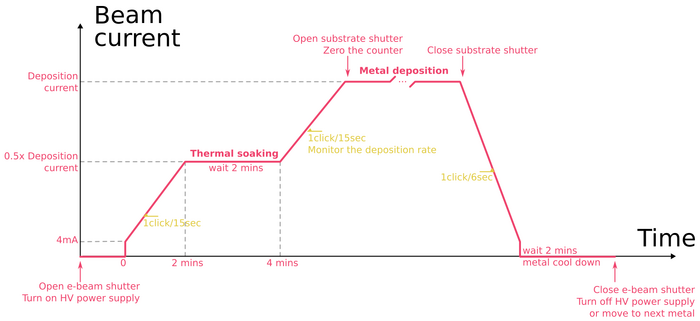
A general good idea is to follow the plot below for the beam current ramping.
- Rotate the stage to face the crucible liners (90o degrees down - follow the instructions on the lever).
- Never rotate the lever towards the top from the loading posion
- Choose the material on the linear crucible drive as well as on the deposition controller.
- Open the e-beam shutter by flicking the physical e-beam shutter switch to open.
- This exposes the metal to be evaporated.
- If you don't open this shutter, the accelerated focused electron beam will hit the shutter instead of the metal and drill a hole through it!
- Switch on the Carrera Ferro Tec high voltage power supply. The switch is green and is labelled 'Main'.
- Turn on the high voltage on the hand remote. It sets the beam acceleration voltage to 10 kV. This is fixed and cannot be changed by the users.
- Be very sure that you have opened the e-beam shutter.
- Two clicks of the knob and the current set point is set to 4 mA.
- Wait until the current increases to this value.
- Can you see the bright spot where the beam hits the metal in the crucible?
- Center the beam and make sure the beam is
neither too focused nor too defocusednot sweeping (unless required for some materials).- In the dedicated page for materials evaporation, you can read more information for each material that you can evaporate in the cleanroom.
- Consult the Excel log sheet to determine the typical current needed to get a finite evaporation rate.
- Ramp the current up at about 1 click/15 seconds to half the value (typically around 20mA).
- Let it sit at that value for 2 mins while the metal soaks (thermal soaking) and thermally equilibrates.
- Too fast and you'll crack the crucible liner or your evaporated metal film will be rough.
- Continue ramping 1 click/15 seconds while monitoring the deposition rate:
- 1 Å/s is a good rate for metal film evaporation. Try and stay around this value.
- When you are ready to evaporate, zero the counter on the deposition controller and open the sample shutter.
- The shutter takes about 1-2 secs to open, so you don't have to be paranoid about synchronising the zero with the shutter opening.
- Wait until the right thickness is evaporated.
- Close the substrate shutter.
- Ramp the beam down to 0 in a period of a couple of minutes (1 click/10 seconds).
- Don't be too quick about it. We want the metal and the liner to cool down slowly to stop the liner from cracking due to thermal stress.
- Turn off the high voltage on the hand remote.
- Wait 2-3 mins for the metal to cool down before moving over to the next metal or finishing your process.
- The metal inside the crucible should stop glowing.
- If you're done, turn off the Carrera voltage supply.
- Close the e-beam shutter, if the metal is no longer red hot.
AJA1: Kaufman ion milling
- Load your sample via the load lock following the procedure detailed above.
- Rotate the sample to face the ion milling gun.
- Turn off the ion gauge (pressure gauge).
- On the laptop, make sure the PhaseIIJ program is running.
- If not, start it up. (password: apex)
- Set the adaptive pressure controller to 'Remote' (3 sec long press).
- In the program, click on the
Ion gasbutton. It should turn green. This diverts the Ar gas flow to the gun. - In the program, click on the
Ar gasbutton and set the 'STPT' (set point) according to your recipe. - In the program, select the
Pressurebutton and set the value according to your recipe. - Select
Pressurebutton and set the value according to your recipe.- A PID-controlled gate valve between the cryo pump and the chamber will adjust so that the Ar pressure in the chamber matches the set point. You'll hear the valve adjusting when you set the controller to remote. On the adaptive pressure controller display, look at the SP and the P1. These should match the value that you want and keyed into the PhaseIIJ program.
- Turn on the Kaufman source controller power supply by physically flicking the switch.
- On the PC at the preparation table, there are several shortcuts to scripts.
- Execute the relevant beam voltage script (100 V or 300 V) according to your recipe and confirm the settings are reflected on the power supply.
- Execute the discharge script: enter the desired discharge time in seconds and press ENTER.
- Wait till the script is done.
- Go back to the laptop.
- Click on the small
Outputbutton to turn on the gun.- This fires the Ar ions. The ion source shutter still protects your sample.
- Wait for the indicator to turn purple.
- Wait for 2 mins
- Start your timer and open the shutter with the big
Shutterbutton.- You are now milling.
- Click on the big
Shutterbutton to stop the milling. - Click on the small
Outputbutton to turn off the gun (it should turn red). - Wait for 2 mins while the gun cools down.
- In the program, (pressure control section) select the
Openbutton to completely open the cryo gate valve and pump the Ar out. - In the program, click on the
Ar gasbutton to turn off the Ar gas flow. - In the program, click on the
Ion gasbutton. - Turn off the Kaufman source controller power supply by physically flicking the switch.
- Set the adaptive pressure controller to 'Local' (3 sec long press).
- Turn on the ion gauge (pressure gauge).
- Proceed with evaporating metal or unloading your sample following the guidelines.
AJA2: RF milling (auto - RF1)
- Load your sample via the load lock following the procedure detailed above.
- Rotate the stage to face the crucible liners (90o degrees down - follow the instructions on the lever).
- Never rotate the lever towards the top from the loading position
- Turn off the ion gauge (pressure gauge).
- On the laptop, make sure the PhaseIIJ program is running.
- If not, start it up. (password: apex)
- Set the adaptive pressure controller to 'Remote' (3 sec long press).
- Turn on the RF1 power source unit.
- In the program, click on the
run processbutton. - Scroll down to the desired recipe
Run- Your recipe will start automatically
- Once the milling starts, note down the
Voltagefrom the power unit into the excel - Once the recipe terminates, you will get a pop-up window.
- Press
Okay - Set the adaptive pressure controller to 'Local' (3 sec long press).
- Turn on the ion gauge (pressure gauge).
- Turn off the RF1 power source unit.
- Fill out the Excel log file.
- Proceed with other steps such as evaporation, unloading, etc.
Do you want to run in manual mode?
Chamber conditioning
- In the program, click on the
Ar gasbutton and set the 'STPT' (set point) to 80 sccm - In the program, select the
Pressurebutton and set the pressure to 30 mTorr.- A PID-controlled gate valve between the cryo pump and the chamber will adjust so that the Ar pressure in the chamber matches the set point. You'll hear the valve adjusting when you set the controller to remote. On the adaptive pressure controller display, look at the SP and the P1. These should match the value that you want and keyed into the PhaseIIJ program.
Striking the plasma
- Set the RF1 stpt to 25 W and turn on the output.
- Once the plasma ignites, the pressure can be lowered to 2-4 mTorr and flow to 20 sccm.
- Check that the plasma is visible (a faint purple blueish hue inside the main chamber). There is a little pink indicator in the software that should light up in the control software congruent with when the plasma is visible in the chamber.
- Ramping: Enter the ramp time first and then the new set point such that the ramp rate is 1 W/s. Hit enter or click away after entering the new set point.
- Max set pt is 50 W
- Entering the new set point before entering the ramp time will result in the system jumping to the set point in one step. This will cause rapid heating.
- Close the viewport shutter.
- Once the desired set point is reached, start the timer.
- Now you are milling
Ramping down
- Enter the ramp down time and THEN the set point of 25 W.
- Once the system ramps down to 25 W, turn off the output.
- In the program, (pressure control section) select the
Openbutton to completely open the cryo gate valve and pump the Ar out. - In the program, click on the
Ar gasbutton to turn off the Ar gas flow. - Set the adaptive pressure controller to 'Local' (3 sec long press).
- Turn on the ion gauge (pressure gauge).
- Turn off the RF1 power source unit.
- Fill out the Excel log file.
- Proceed with other steps such as evaporation, unloading, etc.
AJA1 & AJA2: Sputtering metals
- Load your sample via the load lock following the procedure detailed above.
- Rotate the stage to face the crucible liners (90o degrees down - follow the instructions on the lever).
- Never rotate the lever towards the top from the loading position
- Note: The sputter sources are angled a bit. 10-20 degrees might give you a more head on sputtering.
- Turn off the ion gauge (pressure gauge).
- On the laptop, make sure the PhaseIIJ program is running.
- If not, start it up. (password: apex)
- Set the adaptive pressure controller to 'Remote' (3 sec long press).
- Turn on the relevant power source unit.
- In the program, click on the
run processbutton. - Scroll down to the desired recipe
Run- Once the milling starts, note down the
Voltagefrom the power unit into the excel - Once the recipe terminates, you will get a pop-up window.
- Press
Okay - Set the adaptive pressure controller to 'Local' (3 sec long press).
- Turn on the ion gauge (pressure gauge).
- Turn off the power source unit.
- Fill out the Excel log file.
- Proceed with any other steps or unload.
Do you want to run in manual mode?
Important warning before you start: For safe operation of the RF ALWAYS enter a ramp rate such that the RF circuitry never ramps faster than 1W/second. Enter ramp rate BEFORE changing wattage!
Striking the plasma
- Open the substrate shutter. The sputter sources have individual shutters.
- In the program, click on the
Ar gasbutton and set the 'STPT' (set point) to 80 sccm - In the program, select the
Pressurebutton and set the pressure to 30 mTorr.- A PID-controlled gate valve between the cryo pump and the chamber will adjust so that the Ar pressure in the chamber matches the set point. You'll hear the valve adjusting when you set the controller to remote. On the adaptive pressure controller display, look at the SP and the P1. These should match the value that you want and keyed into the PhaseIIJ program.
Striking the plasma
- Set the power stpt to 25 W and turn on the output.
- Once the plasma ignites, the pressure can be lowered to 2-4 mTorr and flow to 20 sccm.
- Check that the plasma is visible (a faint purple blueish hue inside the main chamber). There is a little pink indicator in the software that should light up in the control software congruent with when the plasma is visible in the chamber.
- Ramping: Enter the ramp time first and then the new set point such that the ramp rate is 1 W/s. Hit enter or click away after entering the new set point.
- Entering the new set point before entering the ramp time will result in the system jumping to the set point in one step. This will cause rapid heating.
- Close the viewport shutter.
- Once the desired set point is reached, start the timer.
- Now you are sputtering
Ramping down
- Enter the ramp down time and THEN the set point of 50 W.
- Once the system ramps down to 50 W, turn off the output.
- In the program, (pressure control section) select the
Openbutton to completely open the cryo gate valve and pump the Ar out. - In the program, click on the
Ar gasbutton to turn off the Ar gas flow. - Set the adaptive pressure controller to 'Local' (3 sec long press).
- Turn on the ion gauge (pressure gauge).
- Turn off the RF1 power source unit.
- Fill out the Excel log file.
- Proceed with other steps such as evaporation, unloading, etc.
Oxidation in loadlock
AJA1 is equipped with all the necessary gas lines and pressure gauges to oxidise the surface of a sample in the loadlock.
However, currently, the oxygen bottle is not connected. Please contact the cleanroom staff responsible for AJA to request a training on this tool feature.
The process is set up for ~10 Torr. In practice it should be between 9.8-10.0 Torr (see log sheet).
Data gathered during initial testing (xlsx)
Empirically: regulator_valve = (desired_pressure / 9) - 1
The Baratron gauge only goes up to 10 Torr. Therefore this is the maximum allowed pressure for oxidation.
The gas hooked up for the process is 85% Ar / 15% O2.
Reference Figure for valve numbering. The actual placement of the parts is slightly different, but all six valves have stickers with numbers on them.

Changing the oxidation pressure
Consult the speadsheet describing regulator valve reading vs Baratron pressure.
Decide on the regulator valve reading you will go for.
Quick guess: (desired pressure in Torr / 9) - 1
- Make sure Valves 1, 3, 5, 6 are closed.
- Make sure Valve 4 is closed in the software.
- Close Valve 2 (turbo iso).
- Open Valve 5 (roughing).
- Open Valve 3 (soak).
- Move behind the tool so you can comfortably reach Valve 1 and the regulator valve.
- Open Valve 1 (fill). The regulator valve pressure should drop about 0.05 bar.
- Adjust the regulator valve to desired value.
- Close Valve 1.
- Open Valve 4 (turbo purge) in the software. Wait for the pressure to go down to 0.148 Torr. You can safely continue if it is lower.
- Close Valve 5 (roughing).
- Open Valve 2 (turbo iso). Wait until the pressure in the loadlock is below 3e-6 Torr.
- Close Valve 3 (soak).
Standard oxidation procedure
Before you start make sure that:
- The loadlock is below 3e-6 Torr and your sample is already transferred in; ready for the oxidation process.
- Gate valve to the main chamber is closed.
- Valves 1, 3, 5, 6 are closed.
- Valve 4 (LL tp) is closed in the software.
- Valve 2 is open.
- O2/Ar gas bottle regulator valve shows a reading that will give you a desirable pressure in the loadlock. Log this value. The pressure reading is relative to ambient atmosphere.
- Open Valve 1 (Fill valve) for
~30a few seconds in order to charge the gas ballast section. You will hear the gas quickly filling the volume. - Close Valve 1.
- Close Valve 2 (Turbo Iso valve) in order to isolate the load lock volume from the turbo.
- Open Valve 3 (Soak valve) in order to expose O2 gas ballast to load lock volume. Start a timer.
- If at any point the load lock increases above 10 Torr, it is safest/best to vent the load lock up to atmospheric pressure by opening Valve 6 (manual N2 vent).
- Do not attempt to rough out the load lock if above 10 Torr through the manual bypass Valve 5.
- If at any point the load lock increases above 10 Torr, it is safest/best to vent the load lock up to atmospheric pressure by opening Valve 6 (manual N2 vent).
- Soak for desired oxidation time. Log the Baratron pressure (red LEDs at the bottom of the tool). Log the oxidation time.
- This needs data feedback from the users. --Karolis
- Open Valve 4 (turbo N2 purge valve) through the AJA PhaseIIJ software to initiate the purging process.
- Once ready to rough out the load lock body, slowly crack open Valve 5 (rough valve) – monitor the load lock turbo's DCU display to ensure the turbo's speed doesn't get bogged down (the exhaust/foreline pressure will increase while roughing out the load lock of course).
- It should be fine. --Karolis
- In case it is not fine and the turbo starts spinning down: turn loadlock pumping off and back on. If there's still a problem, repeat with Valve 4 closed. --Karolis
- The max foreline pressure that the turbo can handle is 10 Torr – this is only for short durations of time when roughing out after an oxidation process. Normally the foreline pressure would be ~e-3 – e-2 Torr range.
- Continue to monitor the load lock pressure as Valve 5 continues to remain open while roughing.
- Once the pressure levels off after a couple minutes, you can close Valve 5.
- The Baratron reading should reach 0.138 Torr while Valve 4 is open. --Karolis
- Slowly crack open Valve 2 (turbo iso valve) in order to continue pumping the load lock as normal; there will be a slight pressure differential, but well within the limits of valve operation.
- It should be fine. --Karolis
- The Turbo iso Valve 2 (or VAT Isolation valve) should not be operated with a high pressure differential. The greatest pressure differential this valve can operate is 100 mTorr. If following the example process above, this warning has already been taken into account.
- After the pressure goes down to 3e-6 Torr, you can close off Valve 4 (turbo purge) from the software & also close Valve 3 (soak valve). This will ensure the gas ballast returns to high vacuum before isolating.
- The load lock oxidation process is now complete. Repeat from Step 1 as necessary.
Troubleshooting
Having trouble with the tool? Please contact the tool responsible from the cleanroom.
If you feel comfortable, please consult the troubleshooting guide below:
- Unable to ignite the plasma (either DC, RF or ion plasma)?
-
- Start by checking for shorts between pins on the power supply input, on the sputtering arm/ion source.
- No rate?
-
- E-beam shutter open?
- Correct material selected on deposition controller?
- Enough current?
- Beam in center of crucible and hitting the material?
- Enough material in the crucible?
- Rate falling during deposition?
- Material running out. Needs top-up.
- Crucible drive getting stuck?
-
- Drive support shafts worn + linear bearings gunked up. Replace
- Protect by wiping with IPA
- and covering with Al foil
- Crucible liner sideways. Abort and open system.
- Drive support shafts worn + linear bearings gunked up. Replace
- Can't turn on HV on the remote emission controller?
-
- Clear yellow error
- Make sure power supply is on
- Reconnect the controller cable
- Login as service: "2013"
- Adjust max emission so that 1% = 2.0/2.5 mA
- Can't adjust current?
-
- Left in auto mode. Change back to manual
- Emission knob encoder broken. Send back to factory to repair/replace.
- Red LED on loadlock gauge?
- Power cycle should fix it during next vent/pump.
- Lots of reflected power for an RF power source?
-
- The matching network for RF3 on AJA2 sometimes needs a bigger kick.
- Try turning on the power without ramping it.
- Another option would be to set the matching network to manual mode and strike the plasma, then turn it back to manual mode.
- The RF1 cable in the red shroud on AJA2 sometimes gets loose:
- Abort process, turn off RF milling power supply, reconnect cable, tighten as much as possible.
- The RF1 power supply controls are very sensitive, maybe someone touched them?
- Extremely slowly adjust Load to reach minimum of reflected power. If not 0 W, adust Tune. Iterate until 0 W.
- The matching network for RF3 on AJA2 sometimes needs a bigger kick.
- Recipes failing when adjusting gas flow?
- Adjust MFC timeout to 30 s
- user: service
- Software empty?
- Fill in with parameters the Phase II J software configurations.
- user: apex